Archive for 2012
Let’s configure HSRP – Hot Standby Router Protocol.
I covered VRRP a few weeks back, which is a vendor neutral FHRP, but now let’s take a look at HSRP which is more or less a Cisco proprietary version of VRRP.
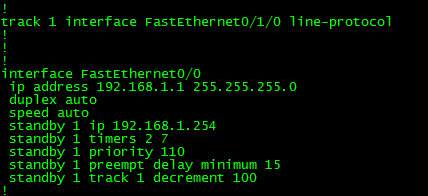
With the exception of the standby keyword this configuration is almost identical to our previous VRRP configuration, and the joy of this is the fact these commands pretty much mean and do the same thing. Standby 1 specifies our HSRP group ID or instance, Standby 1 ip 192.168.1.254 is the HSRP virtual address. Standby 1 timers 2 7 specifies how often HSRP will send out hello packets every 2 seconds in this case and if hello packets are not received within 7 seconds that HSRP speaker is removed from the HSRP group. Standby 1 priority 110 sets this device’s priority within the HSRP group the default priority is 100, and the device with the higher priority is the device that will be the HSRP active router. Standby 1 preempt delay minimum 15 tells this router to take the role of the active router if it were a standby router or if the router has a higher priority and is entered into a group, it also tells the router to wait 15 seconds before taking back the role of the active router. Those 15 seconds should provide enough time for the router to accept any routing updates from its neighbors and have a fully converged routing table so it does not blackhole traffic when it becomes the active HSRP router again. Standby 1 track 1 decrement 100 tells the router to decrement the HSRP priority by 100 if the tracking status of tracking object 1 goes down, and tracking object 1 is configured to track the line protocol of fastethernet0/1/0.
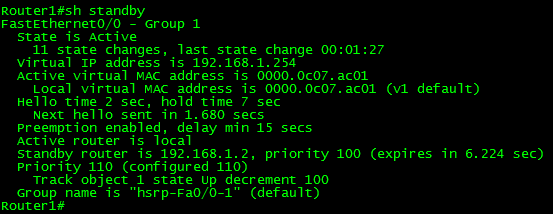
You can issue the show standby command to verify all the HSRP configurations on the router. Just reading this output will tell you everything you need to know about the HSRP configuration, from this you can verify the following:
- What interface is in which HSRP Group
- State of this particular device in the HSRP group
- The Virtual MAC and IP address
- Unless manually configured the MAC will always start with 0000.0c07.acXX – Where XX is the group ID (Remember MAC addresses are in hex format)
- Hello & holddown timers
- Who the active and standby routers are
- Priorities of the active and standby routers
- Any tracking parameters configured on the HSRP group

Above is some debug output of the a standby router becoming the active router, from the above output you see the last hello packet received was 19:31:21, and at 19:31:28, 7 seconds later the holdtime expires and the local router becomes the active router.

Then I connected the original active router back into the network, and you can see the coup message received from 192.168.1.1 stating it has a higher priority, the coup message is what tells the current active router that another router has joined the group with a higher priority and it’s assuming the role of the new active router.
Onward to CCIE!!
Well, I’ve decided to go down the path and become a CCIE! After all I have my CCNP, CCIP, & CCDP I’ve really only got one more level to go to Expert! So while I am still building my lab, I only need a few more routers, a bunch of WICs, and even more cables I have enough to keep studying and moving forward.
So I’ll be trying to get out even more blog posts covering various topics, or whatever topics I stumble upon while tackling the CCIE (and I’m sure their will be a lot of them)
So here goes nothing! (and I’m sure I’ll be saying that 6+ months later when I’m still studying for this)
Debugging IPSec VPN’s.
As promised I mentioned we were going to go over some debug output from 2 Cisco ISRs establishing an IPSec VPN. Now I’m not going to go over every line in the debug but I’ll touch on some of the things to look out for. Now, from the beginning.

From the first line you can see ISAKMP is enabled and it starts looking for it’s peer (172.17.1.1 in this case), the router realizes it needs to use main mode and it locates the PSK for this particular peer, so right off the bat we know the peer we are establish a IPSec VPN with, along with what PSK/Keyring we are going to be using. Next we see some mention of NAT-T and RFC 3947, this is essential so both devices know if there is any NAT”ing done in between the two devices and if so where it is being done. (If you want a bit more information on that I’d say give RFC3947 a glance over, it tells you why this is done) Next you will see the line New State = IKE_I_MM1 meaning the first packet in the IKE Phase I process has been sent out, following by the router so nicely telling us (with line beginning Main Mode exchange). Next you see the ISAKMP state change to MMO_NO_STATE, this is because we have sent out a packet but we have not received a response yet, so we are unable to continue along with the process. Then in the second to last line we see Input = IKE_MESG_FROM_PEER, IKE_MM_EXCH meaning we received a response from the peer (the second packet in the process).

Now that we received the second packet (which contains the remote device ISAKMP polices) this router will compare the remote peers ISAKMP policies to it’s own, you’ll notice right after it says the atts are acceptable, so our policies match! You’ll also see the last 3 lines mention the lifetime: 86400 this is default ISAKMP lifetime in seconds you will want these to match on both sides of the tunnel, it’s not something to be really concerned about when building VPN’s between two Cisco devices but I would pay attention to it when building VPNs between different vendors.

Next we see the ISAKMP state proceed to MM_SA_SETUP which is another confirmation that the ISAKMP policies match and the 2 peers are going to continue along with the process. Also notice the the progressions of Old State = IKE_I_MM2 New State = IKE_I_MM3 and Old State = IKE_I_MM3 New State = IKE_I_MM4 telling us the third and fourth packets have been exchanged, shortly after that you see the router processes the NONCE payload which is used to generate the DH secret.

Now that we have exchanged the first four packets it starts authenticating the peer using the configured method (PSK in this case), and we see this in the line Sending packet to 172.17.1.1 my_port 500 peer_port 500 (i) MM_KEY_EXCH, and the line Old State = IKE_I_MM4 New State = IKE_I_MM5 telling us the fifth packet has been sent. Right after we see that we received the response packet from the peer in line Received packet from 172.17.1.1 dport 500 sport 500 global (i) MM_KEY_EXCH, then after it processes the payload, we see the line SA authentication status: authenticated, telling us the peer successfully authenticated phase I.

The above output just verifies everything we saw and said in the previous output, it shows us we received the sixth packet (Old State = IKE_I_MM5 New State = IKE_I_MM6), and Main Mode has been complete in the following lines. Input =IKE_MESG_INTERNAL, IKE_PROCESS_COMPLETE and Old State = IKE_I_MM6 New State = IKE_P1_COMPLETE.

These next group of lines tell us that phase II quick mode is starting and ISAKMP status is QM_IDLE. Then we see the router sends the first packet in the process and receives the second packet in the quick mode process from the remote device, after that it begins to process the payloads.

Now that we received the second packet from the remote device which contained its IPSec transform-sets the router compares it to its own transform-sets. The router then accepts the transform-set, as long as it matches its own transform-set and, it does. We know this because of the line atts are acceptable and it creates IPSec SAs with the peer (in the line Creating IPSec SAs).

Now, that the IPSec SAs have been established the process is pretty much complete and the IPSec VPN (both phase I and II) is negotiated and formed. There is still some more output displayed. The first 10 of so lines tell us the SPI’s associated with these IPSec peers and the IPSec security association lifetimes, like ISAKMP lifetimes you will want the IPSec lifetimes to match as well. Now there are another dozen of so lines left but the key line in middle of that Old State = IKE_QM_R_QM2 New State = IKE_QM_PHASE2_COMPLETE is the one that tells Phase II quick mode is complete and was successful. As if forming IPSec SAs were not enough.
So there we have the typical debug output of an IPSec VPN, assuming everything is configured properly on both ends, now hopefully after going this and my post from a few weeks ago going over IKE in general you’ll have a deeper understanding of what really goes on when a routers try to form an IPSec VPN.
Passed CCDP!!
After 4 months of getting lost in design guides/books I finally decided to take a shot at the CCDP exam, and passed! I’m sure the experience I gained at worked helped out even more since a good portion of job is network design.
Much like the CCDA it covered the best practice and design for a broad array of different technologies IP addressing, remote access, security, virtualization, multicast, & various other topics. Just from my own experience the difficulty of the questions varied I found the layer 3 routing protocol and IP address questions to be quite simple, what I consider along the lines of just good common sense for any network design. Compared to the data center/virtualization technologies where I found them a little bit more difficult because I don’t typically find myself playing with NX-OS often. I will say however my previous experience managing and maintaining a few VMWare ESX clusters did come in handy.
I am looking forward to a small break before I start going down another path, whether it be CCNP: Security or towards my CCIE: R&S. So for now it’s back to blogging, labbing, working, and living life!
Now to figure out what more I need to complete my CCIE lab!
Verifying IPSec tunnels.
I know my last few posts have been focused on either how IPSec functions or the configuration so now that we know how to configure IPSec how can we make sure our IPSec VPN is up, functional, and passing traffic? Well there are a few different commands we can issue to check on the status or our IPSec VPN:
Show crypto isakmp sa

This command will tell us the status of our negotiations, here are some of the common ISAKMP SA status’
The following four modes are found in IKE main mode
- MM_NO_STATE* – ISAKMP SA process has started but has not continued to form (typically due to a connectivity issue with the peer)
- MM_SA_SETUP* – Both peers agree on ISAKMP SA parameters and will move along the process
- MM_KEY_EXCH* – Both peers exchange their DH keys and are generating their secret keys. (This state could also mean there is a mis-matched authentication type or PSK, if it does not proceed to the next step)
- MM_KEY_AUTH* – ISAKMP SA’s have been authenticated in main mode and will proceed to QM_IDLE immediately.
The following three modes are found in IKE aggressive mode
- AG_NO_STATE** – ISAKMP SA process has started but has not continued to form (typically do to a connectivity issue with the peer)
- AG_INIT_EXCH** – Peers have exchanged their first set of packets in aggressive mode, but have not authenticated yet.
- AG_AUTH** – ISAKMP SA’s have been authenticated in aggressive mode and will proceed to QM_IDLE immediately.
The following mode is found in IKE Quick Mode, phase 2
- QM_IDLE*** – The ISAKMP SA is idle and authenticated
- sh crypto ipsec sa – Now this output can really daunting at first just due to the amount of information that is displayed here but there are a few key things to watch out for. Such as the #pkts encaps/encrypt/decap/decrypt, these numbers tell us how many packets have actually traversed the IPSec tunnel and also verifies we are receiving traffic back from the remote end of the VPN tunnel. This will also tell us the local and remote SPI, transform-set, DH group, & the tunnel mode for IPSec SA.

- sh crypto session – This command will give you a quick list of all IKE and IPSec SA sessions.
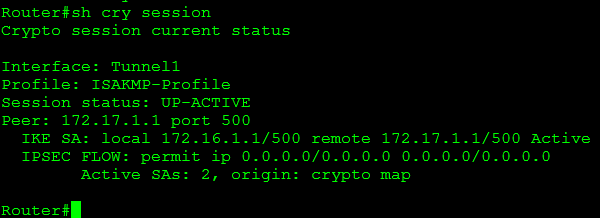
Some of the common session statuses are as follows:
- Up-Active – IPSec SA is up/active and transferring data.
- Up-IDLE – IPSsc SA is up, but there is not data going over the tunnel
- Up-No-IKE – This occurs when one end of the VPN tunnel terminates the IPSec VPN and the remote end attempts to keep using the original SPI, this can be avoided by issuing crypto isakmp invalid-spi-recovery
- Down-Negotiating – The tunnel is down but still negotiating parameters to complete the tunnel.
- Down – The VPN tunnel is down.
So using the commands mentioned above you can easily verify whether or not an IPSec tunnel is active, down, or still negotiating. Next up we will look at debugging and troubleshooting IPSec VPNs
* – Found in IKE phase I main mode
** – Found in IKE phase I aggressive mode
*** – Found in IKE phase II quick mode
Encrypted GRE Tunnels.
One thing to keep in mind about IPSec tunnels, is the fact they do not scale very. After all a simple IPSec tunnel will not pass multicast traffic so routing updates will not traverse the tunnel requiring you to either rely on RRI (Reverse route injection) or static routes. So how do we get over this little obstacle, we run a GRE tunnel. (I covered GRE tunnels a few posts back)
Now there are a few ways we can do this, the first is to run the GRE tunnel over the IPSec tunnel, in this case the tunnel destination is at the other end of the IPSec tunnel and is matched by the ACL of the IPSec tunnel to ensure the traffic between the tunnel endpoints are encrypted. Another way is to apply an IPSec profile to the GRE tunnel. Let’s check out the configuration:

You will notice some of these configurations will look verify familiar such as the ISAKMP policy and the transform-set. However there are a couple of differences you will notice, such as the absence of a crypto map a few new profiles and keyrings.

This configuration allows us to nest specific hosts and pre-shared keys to a specific keyring, that we will apply later on.

The ISAKMP profile is where we specify what end points should match this policy, as well as tie in the keyring we created earlier. Keep in mind we can have multiple PSK’s in a keyring and multiple match identity in the same ISAKMP profile. The ISAKMP profile will simply find the right PSK in the keyring for the specific match identity address in the ISAKMP profile.
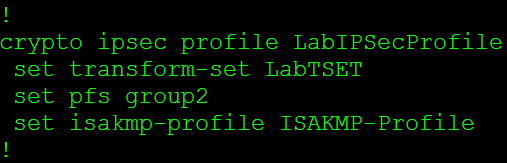
Now we have the IPSec profile, this is pretty close to what the crypto map did. It ties in ISAKMP so it knows what peers to match with and also the transform-set for phase 2 negotiations. You will also see in here we can set our Perfect Forward Secrecy (PFS) level, if one is desired.
So now that we have everything we need all we need to do is apply our IPSec profile to the tunnel interface.
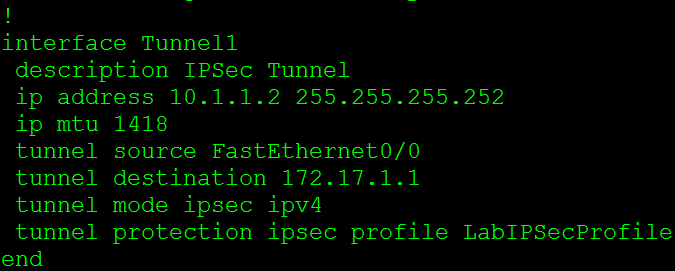
The 2 commands that make this happen are the tunnel mode ipsec ipv4 this tells the tunnel that it is going to be running in IPSec mode. The next command tunnel protection ipsec profile LabIPSecProfile is how tie in the IPSec profile we created early.
Now that we have a GRE with IPSec protection our GRE tunnel is secure from the eavesdropping eyes of the internet. This GRE tunnel also provides us a transport mechanism to carry multicast traffic so we can run a routing protocol over this connection providing us with a scalable solution for managing site-to-site VPNs and our routing infrastructure.

 CCIE or Null!