Archive for 2012
CCIE or Null!
I’ve been talking about getting my own domain for a while now, and trust me I’ve been thinking about a good website name for a while now. I figured CCIE-or-Null.net was appropriate, since I am going to be tackling the CCIE: R&S pretty heavily soon enough. I’ll be completing my home lab in the next few weeks then I’ll grab the INE workbooks and off I go so by this time next month I will be in full swing studying for the lab.
What about the written though? Well I’ve been reading and labbing for the last 4-5 months, so I’ll take a stab at that soon. The only reason I haven’t taken my written yet is because I want to jump right into my lab prep after I pass the written. I know how quickly time can fly by and 18 months is not as long as you think it is.
Blogging for two years now!!!!

Well, its been another year time flies when your having fun! it’s hard to believe another year has flown by. It only feels like a few weeks ago, I did my last yearly post! I’d say the last year has been pretty good to me I got a SonicWall ceritifcation, my CCIP, & CCDP. Plus I started my way torwards my CCIE: R&S I’ve read and labbed for a lot of hours already reinforcing my knowledge.
So far I’ve got 65 articles published, which means I’ve published 35 new articles last year compared to the 30 articles I did my first year. Nowadays this blog averages 3600+ views a month where as last year it was only averaging around 1200-1400 views a month which means more and more of you guys are coming back! Thanks Guys!!! I’ve got much more in store for this blog this over the next year, I’m looking to get this blog its own domain and I have plans getting a few videos posted as well, so heres to another year of blogging!!
I’ve recently taken a Senior IT position within another MSP (Really recently, this will be my second week in the new position) so now I’ll get even more exposure to more technologies F5 Load Balancers, Nexus, IPS’s, and much more ASA related work on top of the normal switching and routing world that carriers it all (And I have couple wireless networks so we might be seeing wireless making a comeback!) So there will be many more blog posts coming down the pipe!
My top 5 articles:
- Understanding a Wi-Fi Connection with 3,406 views.
- Cisco Band Select with 2,703 views.
- Wireless Networking & the 5 GHz RF Range with 2,262 views.
- Cisco WLC Interfaces with 2,137 views.
- Cisco IOS DHCP Server with Option 43 for LWAP’s with 1,617 views
Total visits to my blog per date: 49,929!!!
Big changes from last year!!!!
Unicast Reverse Path Forwarding uRPF
Another great security feature within every Cisco IOS ISR is uRPF, Unicast Reverse Path Forwarding. This nifty little feature has the router verify the source of any IP packets received is reachable via the routing table. uRPF is used to prevent common spoofing attacks and follows RFC 2827 for ingress filtering. The router will actually rely on the CEF table to perform lookups. uRPF works in 2 modes strict mode and loose mode, lets quickly talk about these two modes of operation.
- Strict Mode: In this mode the router verifies the source of the IP packet arrives on the same interface the router would use to reach that source address. Beware of asymmetric routing.
- Loose Mode: In this mode the router simply verifies the source IP can be reached via the CEF table using any interface.
Now that we quickly discussed the 2 different modes uRPF operates in, let’s go over a few quick tips:
- Since uRPF relies on CEF, CEF must be enabled.
- uRPF takes into account multiple paths, so if you are doing any equal cost load sharing uRPF will take that into account. uRPF will also take into account any unequal cost load sharing (such as EIGRP variance).
- Asymmetric routing is different from (un)equal cost load sharing, and can/will cause issues with uRPF.
- uRPF works best at the network edge, and to further specify the network edge not on your access layer the network edge facing the public internet.
Let’s now configure uRPF, we are going to start off with the configuration of loose mode:

This is a good time to mention uRPF is configured on an interface basis, and it is enabled by a single command. The keyword at the end of the command specifies the mode uRPF operates in, since I am configuring uRPF in loose mode I want to make sure the router can reach the source of any IP packet received on interface fa0/0 using any interface on the router.
Now let’s configure uRPF to operate in strict mode:

You’ll notice this command is very similar to the way enable loose mode, with the exception of the keyword rx at the end of the commend, this tells the router to verify the source of any IP packet received on interface fa0/1 should be reachable via interface fa0/1 and not any other interface on the router. As mentioned previously the router verifies connectivity by looking at the CEF table, if CEF points to an interface that the packet was not received on that packet will get dropped.
Now that we have configured uRPF (simple right?) let’s issue a couple show commands to verify our configuration:
Show ip traffic – This command will tell you how many packets uRPF has dropped.

Under the IP statistics the first Drop section has an entry for unicast RPF this counter keeps track of how many packets uRPF drops which is definitely useful to know. You’ll also notice 12 packets were dropped, which we will discuss later.
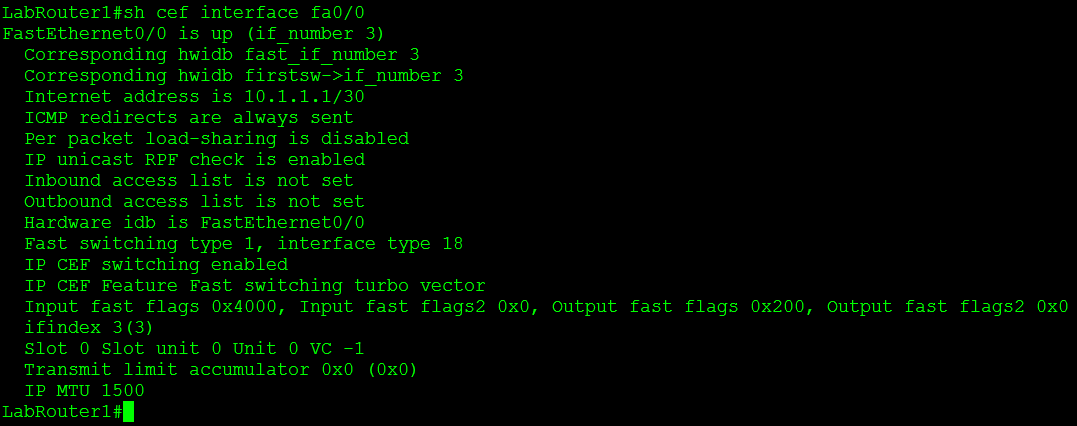
Another command is show cef interface %Interfacenum/num% this command will also tell you whether or not uRPF is enabled on the specific interface.
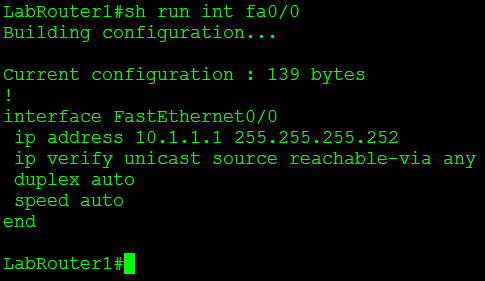
Let’s also not forget the simplest command of them all: show run interface %interfacenum/num%
One feature that makes uRPF even more powerful is the fact we can tag on an ACL specifying traffic we want checked or don’t want to be checked. For example I configured uRPF on one my lab routers that had an old DMVPN & BGP configuration running on it, shortly after I configured uRPF I noticed the BGP adjacencies to the spokes go down. After that I configured an ACL so my DMVPN Tunnel traffic was not caught by the uRPF check.

You guys should know by now how much I love named ACL’s but you’ll notice I used an extended numbered ACL, the reason for that on the is simply due to the fact I couldn’t use a named ACL with uRPF.

No option to use a named ACL only numbered ACLs. There are two other options there allow-default which allows the default router to be used when verifying source addresses, and allow-self-ping which allows the router to ping itself, although allowing self-ping opens the router up to a DoS vulnerability.
You can also read more about uRPF in RFC 3704.
Configuring TCP intercept.
SYN floods are a pretty common DoS attack that can be performed on any TCP based (FTP, Web Server, Email, etc) application over the internet, luckily our normal run the mill Cisco IOS ISR routers have a feature known as TCP Intercept that can protect your servers from this type of attack.
TCP Intercept operates in 2 different modes but the overall concept is the same, TCP intercept will take into account every SYN packet from the client that traverses the router and if the connection remains half-open or there are so many half-open connections the router will start sent sending rest (RST) packets to close that connection. Half-open connection are those that do not fully complete the TCP handshake (SYN, SYN-ACK, ACK process).
The first of two modes that TCP Intercept operates in is intercept mode. In this mode the router actually accepts the SYN and responds to the source with the SYN-ACK packet, if the client completes the connection by sending the ACK the router then passes the original SYN to the destination and negotiates the connection with server, the client is completely unaware this process is even going on. The only thing to keep in mind with the intercept feature is that the router only keeps track of the TCP packet type, it does not take into account any TCP options within the packet (ie: window scaling or other TCP features within RFC 1323).
Here is a diagram of the process (This image is from Cisco Press: Cisco Router Firewall Security’s book)

TCP Intercept in Intercept mode capturing every SYN packet and acting as buffer protecting the server behind.
TCP Intercept can also operate in a watch mode in this mode the router takes a much more passive approach. In this mode the router does respond to any SYN packet it just sits back and watches the TCP handshake process. If the router notices a connection is half-open for so many seconds it will send a RST packet to the server so the server closes the half-open connection.
Now that we have an understanding of TCP Intercept let’s go ahead and configure TCP intercept.
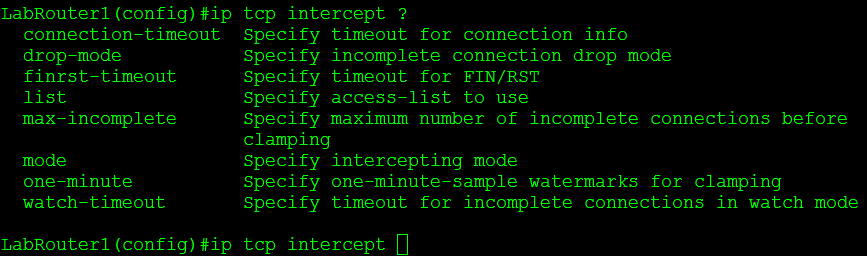
TCP Intercept configuration options
TCP intercept is configured from global config mode and we have quite a few configurations options here. I’m going to configure TCP Intercept for both watch and intercept mode and we will go through the configurations:

Sample TCP Intercept watch mode configuration
This watch mode configuration accomplishes the following:
- Sets the TCP Intercept mode to watch mode. ip tcp intercept mode watch
- TCP Intercept is configured to monitored TCP connection to servers matched in the TCPInterceptACL access-list, this provides us granular control of the servers and ports we want to monitor. ip tcp intercept list TCPInterceptACL
- The router will transmit a RST packet to servers if the connection is not established within 8 seconds. ip tcp intercept watch-timeout 8
- TCP Intercept will enter an aggressive mode and start dropping the oldest TCP connection if there are 500 half-open TCP connections until that number is below 400 half-open TCP connection. ip tcp intercept max-incomplete high 500 & ip tcp intercept max-incomplete low 400
- TCP Intercept will enter an aggressive mode and start dropping the oldest TCP connection if 300 connection requests within one minute until that number is below 200 requests a minute. ip tcp intercept one-minute high 300 & ip tcp intercept one-minute low 200
- TCP Intercept will close and any connection that has been open for 8 hours (28800 seconds) with no activity. ip tcp intercept connection-timeout 28800

Sample TCP Intercept watch mode configuration
The above TCP Intercept intercept mode configuration is very similar to the previous watch mode but the first thing you will notice is the fact it doesn’t tell you it is operating in intercept mode, this is because it operates in intercept mode by default. You also notice 2 additional commands in here:
- ip tcp intercept finrst-timeout 20 this tells to router when it sees a TCP connection being torn down, if that connection is not closed within 20 seconds the router will close the connection itself by sending a RST packet.
- ip tcp intercept drop-mode random when TCP Intercept starts aggressively dropping connections by default it drops the oldest connections, this behavior can be changed so the router drops random TCP connections instead of the oldest connections.
You can verify how TCP Intercept is interacting with your traffic by issuing the following commands:
- show ip tcp intercept statistics – This will give you a quick look at incomplete, established, & how many connection requests have been made to the servers matched by the ACL.
- show ip tcp intercept connections – This command shows you all the current connections TCP Intercept is working with/watching.
- You can also use debug ip tcp intercept to quickly see what TCP Intercept is doing in real-time.
Now if you want to fully lab this feature out and see it in action you can set up a client/server enviroment in your lab and either configure an ACL to block ACKs from your source client or use a program call Scapy to transmit SYN packets.
Sample ACL:
access-list 101 deny tcp host hostaddress eq portnumber host destination ack
Sample Scapy SYN packet:
sr1(IP(dst=”destinationIP“)/TCP(dport=destinationPortNumber,flags=”S”))
Different DMVPN phases.
When you starting talking about DMVPN you’ll typically hear it being described as a Phase I, II, or III type DMVPN network, so let’s quickly discuss the differences between these three DMVPN phases:
DMVPN Phase I: This phase involves configuring a single mGRE interface on the hub, and all the spokes are still static tunnels so you won’t get any dynamic spoke-to-spoke connectivity. The only advantage of the phase I setup is the fact the hub router’s configuration is much simpler.
DMVPN Phase II: This phase involves everysite being configured with mGRE interface so you get your dynamic spoke-to-spoke connectivity, no more static tunnel destination’s will be configured.
DMVPN Phase III: This phase expands on the scalability of the DMVPN network. This involve summarizing into the DMVPN cloud to provide (Remember EIGRP allows us to summarize out interfaces and BGP allows us to advertise aggregate addresses to neighbors). Along with configuring NHRP redirects and NHRP shortcut switching. NHRP redirects tells the source to find a better path to the destination it is trying to reach. NHRP shortcuts allow DMVPN to learn about other networks behind other DMVPN routers (kind of like ARP for DMVPN). However Phase III will get it’s own post later on.
Configuring DMVPN.
Since I covered the basics of NHRP, now seems like the best time to tackle the configuration of DMVPN on Cisco IOS routers. I’m going simply build off of my last NHRP post, so we are going to have a single hub router and 2 spoke sites, we are going to adding encryption to our DMVPN using tunnel protection.
So lets first configure our IPSec parameters:

For a more in depth look at these commands refer to my older post Encrypted GRE tunnels.
Now that we have the IPSec parameters configured let’s go ahead and configure our tunnel interface for an encrypted DMVPN, so let’s start with the hub:
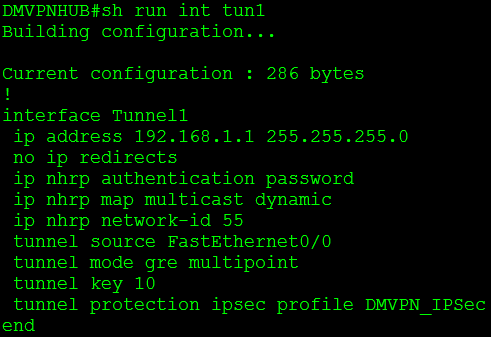
So there it is, the DMVPN hub, only a few these commands are typical of a normal GRE tunnel but most of them are specific to the DMVPN configuration. Let’s talk about a few these commands:
- ip nhrp authentication password: This command allows you to specify a password for your DMVPN network so not just any GRE tunnel can join your DMVPN cloud. (This is just one a few different mechanism to control who can participate within your DMVPN network)
- ip nhrp map multicast dynamic: This command allows NHRP to automatically map multicast traffic from other devices, without the need to statically configure each device. So this command is how our NHS builds its “nhrp database”
- ip nhrp network-id number: The NHRP network-id number ensures this DMVPN interface only participates within it’s own DMVPN network. Just in case you have more the one tunnel interface on the same router connected to two separate DMVPN clouds/networks.
- tunnel mode gre multipoint: This specifies the tunnel interface an GRE multipoint meaning this will be acting as single interfaces connected to multiple peers
- tunnel key number: This is another mechanism to keep your DMVPN network clean of any unwanted members, this is actually built into the GRE encapsulation itself, only GRE’s tunnels with the same tunnel key can communicate. So if the hub is using Tunnel key 10, then the spoke must use tunnel key 10 as well, if not then they will not be able to communicate.
Now let’s look at the spoke:

Now most of these commands are identical to that found on the hub, with the exception of the following:
- ip nhrp nhs 192.168.1.1: This commands specifies the Next Hop Server for the spoke
- ip nhrp map 192.168.1.1 10.1.1.1: This command maps the NHS GRE (protocol) address to it’s physical interface (NBMA) address.
- ip nhrp map multicast 10.1.1.1: This tells the NHC where to send its multicast traffic to.
And to reinforce that here is the configuration from the second spoke in this DMVPN network:

Identical to the first spoke (with the exception of the ip address).
So now that we have this configuration how do we verify our DMVPN is working, well let’s check our NHRP mappings along with our routing.

We issue the command sh ip nhrp this tells us we have NHRP mappings to both spokes 192.168.1.2 and 192.168.1.3.
Now let’s check the routing, I’ve configured these 3 routers to speak via eBGP:

So from this you’ll notice our hub has 2 eBGP adjacencies with our spokes, and we are are learning a few prefixes from those spokes.
But, now for the ultimate test, lets get spoke1 and spoke2 to create a direct tunnel between themselves.

From the top to bottom, you’ll notice Spoke2 only has NHRP mapping to the hub. I perform a traceroute to spoke1 and you see it bounce off the hub and then hit spoke1 I then perform the same traceroute a second later and it directly hits spoke1 bypassing the hub completely. Now when I issue the sh ip nhrp command you notice I still have my NHRP mapping to the hub at 192.168.1.1, but I also have a new NHRP mapping to spoke1 at 192.168.1.2. So our DMVPN is working successfully!
While this is a small victory, the topic of DMVPN is a fairly large one and we still have a few more topics to cover:
- How DMVPN interacts with IGPs. (Think about this one, some of the tools we rely on to prevent routing loops will be working against here)
- Different “phases” of DMVPN networks.
- Dual cloud DMVPN networks.
So stay tuned there is more to come!

 CCIE or Null!