Cisco WLC redundancy with mobility groups.
While LWAPs and Wireless Controllers can streamline and standardize WLAN deployments, it also tends to provide a not so nifty single point of failure. If you only have one WLC in your network and you lose all connectivity to that WLC, whether it be a mis-configuration or a general failure all your LWAP’s will go down until they can join the controller again (or find another controller to join).
The configuration for this is actually fairly simple (especially if you only have 2 WLC’s). First off you want to issue the sh mobility summary to go over the current mobility settings, all these settings are important but probably the most important one is the Default Mobility Domain this is the current name of the mobility group and both controllers will need to be in the same mobility group. (Important: Mobility group names are case-sensitive). If you wish you can change the mobility domain name by issuing the follow command config mobility group name group_name command.
Now once you’ve decided on a mobility group name and both controllers are in the same mobility group, you need to add each respective controller’s MAC address and IP Address as a member of the mobility group on all participating controllers. This done with the following command config mobility group member add mac_address ip_address. Mobility group members can be removed by changing the add keyword with the word delete. Now, each model of Cisco WLC’s can support a max number of 24 mobility group members. So their is a limit, albeit a fairly large limit but it does exist.
Also keep in mind, all this can be done via the GUI interface under Controller -> Mobility Management and of course in the GUI everything is pretty self-explanatory in labelled fields for you to configure easier. (Just more time-consuming)
Once this is all said and done you want to issue the sh mobility summary again to verify the configuration and verify the status of each mobility group member is up.
A few facts to keep in the back of your mind are mobility group messages communicate over UDP port 16666, you will want to create rules or an ACL allowing that kind of traffic between the controllers (If you have any type of firewalls between them). You can issue the following commands to very connectivity ping, eping, mping. Obviously the ping command is just there to verify layer 1 connectivity, eping will verify the EoIP tunnel between the controller has formed. The EoIP (Ethernet of IP) tunnel is where all these mobility messages are exchanged through, and mping will test communication over UDP 16666.
Cisco.com resources
WLC Configuration Guide Release 7.0, Chapter 14 Configuring Mobility Groups
Note: I would have loved to include my own screen shots, but I do not have 2 WLC’s out of production to work with.
Understanding a Wi-Fi connection.
Just some more details on how drastically different wireless networks differ from the traditional wired network is understanding the client connection. Surely we all understand how the wired connection works, we plug in a cable two of the four pairs carry data then speed and duplex setting are auto-negotatiated. However when you look at a wireless client you see an antenna, signal strength, data rate, RSSI, power level, and SNR values definitely a little more to think about.
I’ll start with RSSI, which is the Received Signal Strength Indicator this value is typically shown as a negative dBm value (dB and watt values are a topic for another post). RSSI is the measurement of power in an RF signal, the more power in an RF signal the better the connection quality is. So the closer this value is to 0 the stronger the signal is. So a value of -61 is stronger then a value of -74. Now different vendors do have different scales some vendors will have a max value of -100 while others go higher or lower, of course signals that weak should be avoided (and probably won’t work anyway). So it’s best to get some documentation from the vendor of your client WLAN cards to see the RSSI value range. The value of the RSSI will also play a role in the connection speed, and once again vendor documentation will provide the RSSI value to link speed ratio (and do keep in mind many other factors play a role in the connection speed as well).
SNR is the Signal to Noise ratio, this is how much stronger the wireless signal is compared to the noise floor surrounding the WLAN client. This is shown in a positive dB value. Too much RF noise around the WLAN client will cause collisions resulting in frames being retransmitted thus lowering the throughput of the connection. Try connecting a cordless phone that works in the 2.4 GHz range right next to a b/g access point, the phone can generate enough RF noise to cancel out the wireless signal completely. It’s typically best practice to have the SNR value 20 to 25 dB’s away from the RSSI value. So to go back to our previous example if our RSSI is -61 we would want our SNR value to be around -86, or if our RSSI is -74 we would want the SNR to be -99.
The data rate can be one of many values depending on which wireless standard you are connecting with. Be aware though that wireless is a shared medium so it’s half duplex it can not transmit and receive at the same time. So your actual throughput will be about half of what your client is connecting at. A WLAN device showing a connection of 54 Mbps will really have throughput of maybe 30 Mbps. Throughput can be tested using nice little utility called iperf which is available on both Windows and Linux platforms for free.
The power level is measured in mW and depicts how much power a WLAN device is using to maintain the connection. Its typically best practice to design your WLAN infrastructure so your devices operate at half their max output power. This way if an AP goes down neighboring AP’s can double their output power and maintain the availability of the WLAN.
So the overall signal strength/quality registered by client will be a mixture of all those variables.
Below is a screen shot from the Cisco Aironet Site Survey Utility
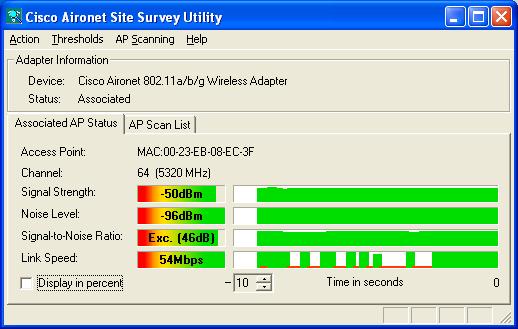
Here you will see the RSSI at -50 dBm and noise level of -96 dBm, resulting in an SNR value of 46 dB. This utility will also provide you with the BSSID (MAC Address) of the AP you are connecting to along with the RF Channel, 64 in this case utilizing 802.11a.
Who’s congesting my network?
I figured I would write a post concerning some features built-in to most Cisco routers nowadays that can be lifesavers in identifying network congestion and who/what is causing it.
The first feature I want to mention is NetFlow, this nifty little feature will identify network traffic by the protocol as well as determine how much throughput each protocol is using giving you a clear view of the traffic traveling your network. You configre it on a per interface basis, specify the address you want the Netflow information sent to, and also the port you want it sent out on. 2055 is the default port used by the SolarWinds Netflow Analyzer in this case (Free Tool)

You can issue the sh ip cache flow command to see the output. While this output can be duanting at first it is actually fairly simply to understand once you realize what each column signifies. A nice shortcut for analyzing netflow is to find a free tool that will do it for you.

Their is more information displayed but from this point it looks almost identical to the sh ip flow top-talkers command shown below, the important thing here is the breakdown of the major protocols.
The next really cool feature is called top talkers after you configure this you can quickly see which end devces on your network are taking up the most bandwidth.
The configuration is as follows:
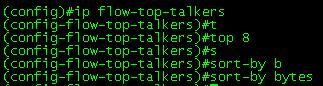
A fairly straight forward configuration, first you enable top top talkers and then configure the parameters you want. You can set top-talkers to sort by the amount of bytes from each end device or by the amount of packets. You can also configure the amount of devices you want to see, anything from 1 device to 200 device I usually prefer to simply see the top 10 devices (well 8 in this case)
You view the top talkers with the sh ip flow top-talkers command:

As you can see the output is placed nicely in a few columns, identifying the source interface and IP address, the destination interface and IP address, the protocol number (Pr column), the source and destination ports (keep in mind these are in hex format and need to be converted to decimal), and lastly the amount of bytes transferred in this case.
So whether someone has introduced a new program, or a users decides to try and download the entire internet you should be able to easily identify it. Those two built-in features alone can help you troubleshoot any network congestion your network experiences with your Cisco devices.
Cisco band select and client RSSI.
I wanted to quickly touch on one more parameter pertaining to Cisco band select and that would be the acceptable RSSI level that client can register for it to be able to participate with band select.
The key thing is understand what the RSSI signifies to a WLAN device, it’s a received signal strength indicator it shows you in a numerical reading (usually dBm) of what the signal strength is of a wireless client.
The closer to 0 (zero) the value is the better the signal is and the better the link speed (of course the speed is also dependant on many other factors). The key to tweaking this is to know what client devices you have in your network, then you want to know the specifications of those client devices and see what RSSI values correlate with what link speed (You should be able to find that somewhere in the manufacturer’s website or in their documentation). Then you will need to decide what link speed is acceptable for your environment.
Here are the details from the Cisco Aironet a/b/g PCI Desktop Adapter
So judging from you could probably change the acceptable RSSI value to 81 dBM, this way any dual band clients will connect at 36 Mbps and above. (Just keep in mind different WLAN client devices register RSSI values on different scales so the above example is not going to fit well for everyone out there.) This setting may also take a bit of trial and error as well, because if set the acceptable RSSI too high not many dual band clients will connect to the 5 GHz range, set it too low and clients may just roam to the 2.4 GHz range very quickly because they may quickly be out of range of any 802.11a signal.
Wireless Networking and the 5 GHz RF Range.
As I speak with other IT professionals concerning wireless networking, one thing that seems to shock people is when I start talking about the 5 GHz RF range. Usually the first thing they say is along the lines of “You are still using that?”, most people still see the 5 GHz range associated with the 802.11a standard and nothing more, while it’s true potential is finally coming to light (and people are now seeing the limitations of the 2.4 GHz frequency).
Since this topic can get in depth, and I prefer to keep my posts to a decent length, and to the point, we will jump into the advantages of utilizing the 5 GHz range:
- Less congestion, anyone who has been administrating or implemented a wireless knows how many other devices are using the 2.4 GHz range everything from BlueTooth devices (which is found in almost every phone), microwaves (found in office lunch/break rooms), to cordless phones. More particularly microwaves and cordless phones they will congest the 2.4 GHz spectrum without regard for any other device using the RF band. The 5 GHz does not suffer from as much interference as the 2.4 GHz range does, of course proper survey’s should be done prior to rolling out a Wi-Fi network just to be sure.
- More non-overlapping channel, the 5 GHz range consists of 3 bands. These bands provide us with 21 non-overlapping channels this gives us the ability to more densely pack an area with 802.11a/n access points. Decreasing the amount of clients per AP (With proper load balancing) providing increased throughput, and making roaming a seamless process. Where as the 2.4 GHz range only gives us 3 non-overlapping channels (1, 6, 11). Detailed information on each UNII band can be found below.
- Channel Bonding. While you can perform channel bonding in the 2.4 GHz it is better suited for the 5 GHz range. Channel bonding is how you achieve speeds up to 600 Mbps in 802.11n it does this by making the channels 40 MHz wide compared to 20 MHz wide. Channel bonding at the 5 GHz range still leaves you with 12 non-overlapping channel, while channel bonding in the 2.4 GHz range gives you 1 (possibly 2) channel.
- Future use. The next wireless standard after 802.11n, is most likely going to be 802.11ac which is promising us Wi-Fi speeds in the Gbps’s it plans to accomplish this by using 40, 80, or 160 MHz wide channels this is going to rule out the 2.4 GHz range completely. (Unless it’s changed.)
- UNII-1/Lower Band (5.150 to 5.250 GHz) Non-overlapping channels 36, 40, 44, 48
- UNII-2/Middle Band (5.250 to 5.350 GHz) Non-overlapping channels 52, 56, 60, 64
- UNII-2 Extended (5.470 to 5.725 GHz) Non-overlapping channels 100, 104, 108, 112, 120, 124, 128, 136, 140
- UNII-3/Upper Band (5.725 to 5.825 GHz) on-overlapping channels 149, 153, 157, 161, 165
Cisco Band Select.
Thought I would shift gears to wireless for a little bit. Cisco introduced a feature some time ago called band select were the dual band clients have a better chance at joining the 5 GHz radio compared to the 2.4 GHz range. This is mainly due to the influx of dual band clients nowadays and how the 2.4 GHz range is generally over utilized.
The Cisco accomplishes this is by ignoring/delaying the first few 802.11b/g probe frames in hopes of it accepting the 802.11a probes because it will appear to have a quicker response time. I would also like to point out that this feature only works when the client first associates to the Access Point. So this feature will not kick in on the fly when the AP notices a high client count or high channel utilization. Plus this feature only goes in one direction from the 2.4 GHz range to the 5 GHz not visa-versa. So this is not a load balance mechanism.
This feature is configured very simply all from one screen in the WLC, under Wireless -> Advanced -> Band Select:
 Now you’ve only got a few settings to configure here, but you still need to take care with these settings like anything on the network you are going to configure. Probe Cycle Count, tells the AP how many probe beacons/frames to ignore/delay. Scan Cycle Period Threshold tells the AP how often in milliseconds it can expect each probe from the client, this setting can be changed depending on the client Wi-Fi cards you are using in your environment and how often the send out probe requests (Check vendor documentation for this). Age Out Suppression, this is the time-out for when the clients will be declared as “new” and may have their probe frames delayed/ignored again. Age Out Dual Band is the very similar to age out suppression, however age out dual band only applies to dual band clients so it will not effect everyone. Just keep in mind something will need to happen for the client to disassociate and re-associate with access point. Acceptable Client RSSI just states the minimum RSSI value a client registers for it to be eligible for band select.
Also keep in mind this feature can be controlled per-WLAN, under the “Advanced” tab

This can also be done via the CLI of the WLC using the following commands:
config band-select cycle-count cycle_count
config band-select cycle-threshold milliseconds
config band-select expire suppression seconds
config band-select expire dual-band seconds
config band-select client-rssi client_rssi
config wlan band-select allow {enable | disable} wlan_ID
And if you want to verify the band select configuration use the following command:
show band-select


 CCIE or Null!