Configure your router to watch for login attacks.
Even though we can configure SSH for secure management, this still does not stop a random person from connecting to your device in an attempt to guess the password. In some cases this could be a bored user who is just curious or in worst cases it could be a malicious user trying to perform a dictionary attack on your password. Something we can do is to configure our router to start blocking login request after so many failed attempts occur within a specific time frame. Now this isn’t going to secure your router indefinitely but it is a simple preventative measure they will slow down any real dictionary attacks and will most likely discourage any bored employees in hopes that they lose interest or remember they have other work to do.
So now let’s say we have an existing router with SSH enabled and we want to configure this login block feature, well let’s enter the following command:

Yep one command. This will block all logins for 120 seconds when 5 failed attempts occur within 60 seconds of each other. Below is a breakdown of the block-for command, and notice all the timers are in seconds.

Now when the router notices these failed attempts it enters a “quiet mode”. This quiet mode is what tells the router to block all further login attempts until the timer expires.
So now I hit my router with a bunch of invalid attempts and noticed the following error get logged:

This message states quiet mode is now on and also notice it actually logs the username I attempted to log in as (ss in this case), the source of the login attempt (192.168.1.109), the port I connected on (22 default for SSH), and the reason (failed login authentication)
From this point I cannot even connect to the router over port 22, putty flat out tells me the connection is refused:

The following error message will also get logged when I attempt to login to a router that is currently in quiet mode:

Stating our login attempt has been blocked by an ACL, but wait we didn’t configure an ACL on this router. Let’s check the VTY lines:

We didn’t configure this ACL but the login block feature did. The cool thing about this is when “quiet mode” is turned off the ACL dissappears:
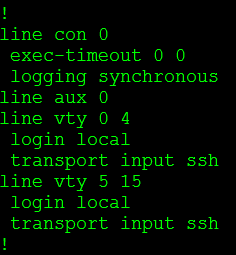
Pretty cool right? We have now taught the router to protect itself.
While this is a nice feature to have configured the last thing you want is to find yourself locked out of your own equipment. So what we can do is configure the router to accept login attempts even when quiet mode is enabled, while that might sound counter-productive to this whole feature it will be something you definitely want to do.
And we do it this way:
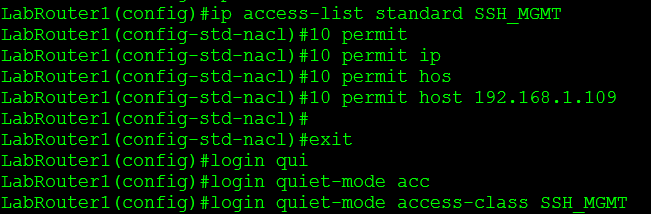
The first thing I did was create an ACL (SSH_MGMT) that permits my management workstation (or management subnets) and then I issue login quiet-mode access-class command and reference the ACL I created. This tells the router to accept login requests from the hosts allowed within the quiet-mode ACL when quiet mode is on and the router is blocking login attempts from everyone else.
So now when quiet mode is initiated this custom ACL is applied to the line VTY lines:

You can verify your configuration with the show login command, this provides you a nice summary of what has been configured as well as the current state of the router:

A few things to keep in mind:
- While the quiet mode ACL will allow login attempts from hosts matched in the ACL, those very same hosts can trigger the router to enter quiet mode.
- If you already have an access-class assigned to the VTY lines and quiet mode kicks in, the quiet mode ACL will be applied during the block-for time. However when the timer expires the quiet mode ACL is removed and the original ACL back in place.
A quick look at WRR.
Weighted Round Robin our method of LAN QoS on the older switching platforms (2950’s/3550’s). Replaced by Shaped (or Shared) Round Robin on our newer platforms but WRR is still a big player out there so let’s take a quick look at it. Before we take a look at any configurations lets quickly take a look at how WRR functions from an overview perspective.
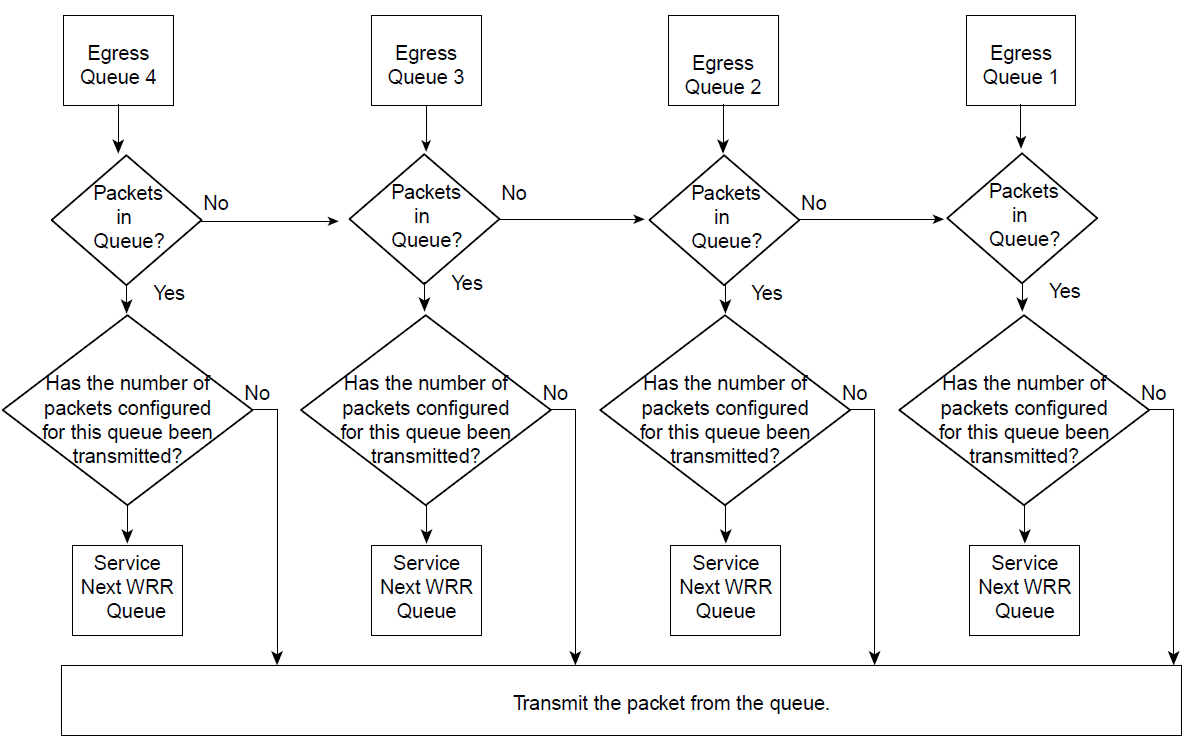
So if we start from top to bottom the first thing we notice is the fact we have 4 queues to work with. Remember these are egress/outbound queues so we are working with outgoing traffic. The switch first checks the fourth queue to see if to see if there are packets in the queue and then it transmits its configured amount of packets. Once the configured amount of packets have been transmitted for that queue it moves along to the next queue. It works this way to ensure queues do not get starved and the switch is not constantly transmitting one queue all the time. After it gets done with queue one it will then reset and start back at queue 4.
So from looking at the above flowchart you can probably guess a few things that need to get configured:
- What belongs in each queue
- How much from each should be transmitted
So in order to configure our queues we go into the interface we are looking to configure (Thank you Cisco for interface range command) and from there we configure the queues as followed:

So from the above we are configuring the following:
- Queue 1 will contain packets marked with CoS 0 & 1
- Queue 2 will contain packets marked with CoS 2 & 3
- Queue 3 will contain packets marked with CoS 4 & 5
- Queue 4 will contain packets marked with CoS 6 & 7
You don’t have to break it up so evenly you can put up 8 CoS markings in a single queue. After all QoS will be different for every network.
So now that we have our queue defined we need to define how many packets from each queue the switch will transmit before working on the next queue. This to, is also done from within interface configuration mode.

When we are configuring the individual queues they start from queue 1 to queue 4 (left to right), so in this example we configured the switch to transmit:
- 10 packets from queue 1
- 20 packets from queue 2
- 30 packets from queue 3
- 50 packets from queue 4
Now we can configure queue 4 as the priority, meaning the switch will check the priority queue and transmit all packets in the priority queue after it checks any other queues. So the switch will check queue 3, transmit the packets then check queue 4 since its got priority transmit those packets, then check queue 2 transmit those packets and then go back to queue 4. We can do that with the following command:

You just have to be careful with what traffic is placed in the priority and how many packets are sent from that priority queue to avoid starving other queues or causing unnecessary latency for other traffic.
You can verify your configuration by issuing the following command sh mls qos interface queueuing

This command will show you the QoS configuration on an interface by interface basis, I only included interface fa0/1 for this example. You see’ll that the expedite queue is enabled (queue 4) and the bandwidth per queue. Right after that we will see the CoS mapping to each of the queues.
Who’s got the time? NTP – Network Time Protocol
Anyone who has ever had to troubleshoot any type of issue on a Cisco router knows they have to look through log messages, and anyone who has ever done this knows what’s it’s like to look through a log where the time is off by minutes, hours, days, or even years. It tends to add on another layer of complexity in itself & typically you are going to be in this type of situation:
- Ok, I’ve got a problem let’s troubleshoot
- Lets look at the logs
- HHmm those dates/times are all wrong
- Ok let’s issue the sh clock command to see what time the router thinks it is
- Now how far off is the router’s internal clock from the real world current time
- Alright now what what time did the problem occur in the real world and what time did the problem occur in the router’s time zone
- There we go!
It’s not overly complex but it can be a little time consuming and it can cost you a good amount of time depending on the type of issue you are troubleshooting. In my mind this is completely unnecessary and should just be corrected. How do we correct this though? Well we configure our devices to check in with a time server and get the correct time using NTP (Network Time Protocol).
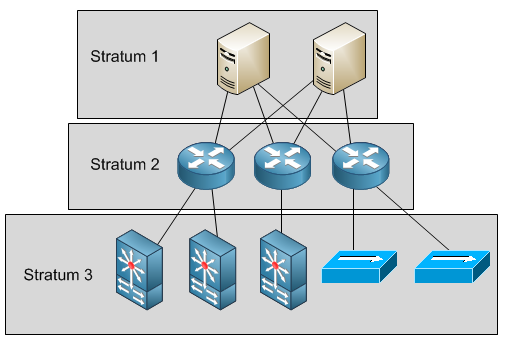
The first thing we will want to do is pick one (or more) of your routers to be the NTP master for the network, and the other routers will connect to this NTP master for the correct time, this will provide us with some type of hierarchical NTP design. Before we configure any clients to check in with the NTP master we decide on we’ll need to get the correct time on the master. To do this we can peer to some of the Stratum 1 public NTP servers. In terms of NTP and Stratum levels, Stratum 1 will be the most accurate time sources, these Stratum 1 servers are directly attached to some type of GPS, WWV, or CDMA device which are stratum 0 devices and are known to have the most accurate time. (Note: Cisco devices do not support the use of these devices if directly attached)
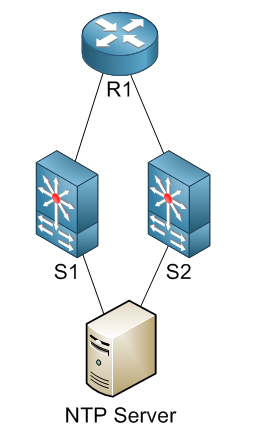
Here is our current topology:
Now let’s configure our router:
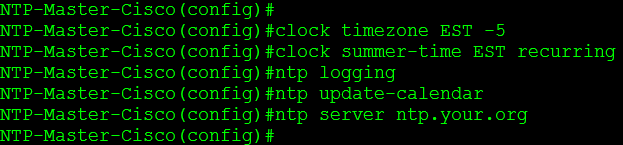
From here we configured a timezone for our router, I named the timezone EST I figured I’d keep it simple and set it to -5 which is where the Eastern time zone fits in the world. Then I set daylight saving time with the clock summer-time EST recurring command. After that I start configuring some NTP parameters I start by turning on NTP logging, I did this just for the sake of showing off some of the NTP logging messages. Then I configure the router to update it’s hardware clock with the time it receives from the server with the command ntp update-calendar, the hardware clock runs off an internal battery and will keep the correct time even when the router loses power. Now we configure our router to check in with ntp.you.org this is just one of the stratum 1 servers I pulled off the webpage mentioned earlier.
Now, shortly after I finish with those commands I see some of the NTP logging messages flash through the console:

The messages are simply telling us the clock was reset, and synchronized successfully with the server we configured. We can verify this by looking at the sh ntp status & sh ntp associations output.


You can see from the sh ntp status output, that our time is synchronized, our stratum level is 2, and when the last update was. From the sh ntp associations we can see we are peered with the NTP server 204.9.54.119 (Confirmed with the * before the IP address) and the NTP server we are peering with is using a CDMA device for it’s clock source. Also notice the 127.127.1.1 address, which is the local router.

So now in SW1 and SW2 I am going to issue the following commands:
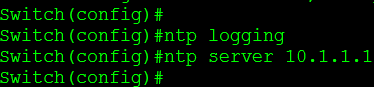
This tells the other devices to check in with the router we configured as the NTP master, very similar to the commands we issued earlier on the master. We can verify this again by issuing the sh ntp status & sh ntp associations:

Notice there is less information, but it still tells us what we need to know. We see our clock is synchronized and to whom, as well as our stratum level. Our stratum level here is 3, since we got our time from a stratum 2 source and we are one more “time hop” away from the stratum 1 source.
So essentially our NTP design looks like this:
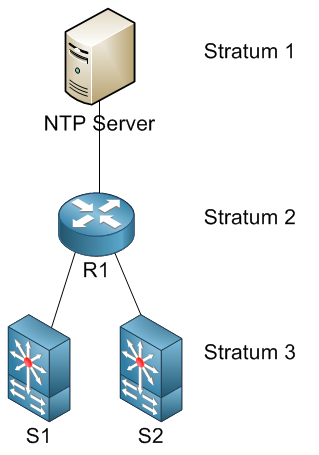
We can do the same thing with even more complex designs:
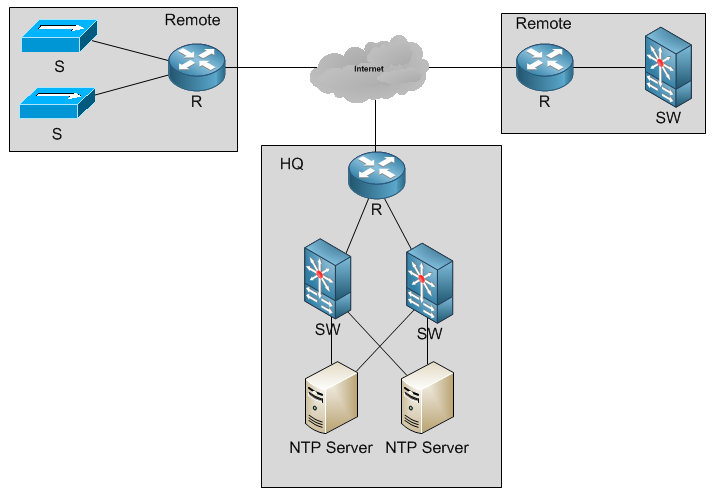
However NTP would be behave like this:
RFC 1305 goes into NTPv3 much more in depth if you want to read about it, also keep in mind NTP runs off UDP Port 123. (I just had to throw that in there somewhere before I ended this post)
Let’s configure HSRP – Hot Standby Router Protocol.
I covered VRRP a few weeks back, which is a vendor neutral FHRP, but now let’s take a look at HSRP which is more or less a Cisco proprietary version of VRRP.
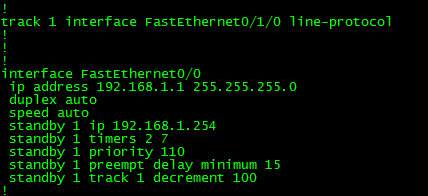
With the exception of the standby keyword this configuration is almost identical to our previous VRRP configuration, and the joy of this is the fact these commands pretty much mean and do the same thing. Standby 1 specifies our HSRP group ID or instance, Standby 1 ip 192.168.1.254 is the HSRP virtual address. Standby 1 timers 2 7 specifies how often HSRP will send out hello packets every 2 seconds in this case and if hello packets are not received within 7 seconds that HSRP speaker is removed from the HSRP group. Standby 1 priority 110 sets this device’s priority within the HSRP group the default priority is 100, and the device with the higher priority is the device that will be the HSRP active router. Standby 1 preempt delay minimum 15 tells this router to take the role of the active router if it were a standby router or if the router has a higher priority and is entered into a group, it also tells the router to wait 15 seconds before taking back the role of the active router. Those 15 seconds should provide enough time for the router to accept any routing updates from its neighbors and have a fully converged routing table so it does not blackhole traffic when it becomes the active HSRP router again. Standby 1 track 1 decrement 100 tells the router to decrement the HSRP priority by 100 if the tracking status of tracking object 1 goes down, and tracking object 1 is configured to track the line protocol of fastethernet0/1/0.
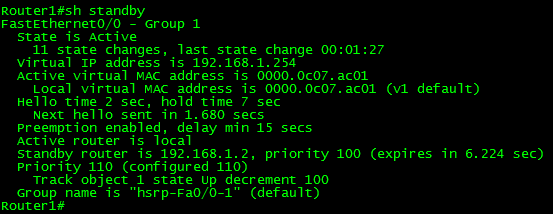
You can issue the show standby command to verify all the HSRP configurations on the router. Just reading this output will tell you everything you need to know about the HSRP configuration, from this you can verify the following:
- What interface is in which HSRP Group
- State of this particular device in the HSRP group
- The Virtual MAC and IP address
- Unless manually configured the MAC will always start with 0000.0c07.acXX – Where XX is the group ID (Remember MAC addresses are in hex format)
- Hello & holddown timers
- Who the active and standby routers are
- Priorities of the active and standby routers
- Any tracking parameters configured on the HSRP group

Above is some debug output of the a standby router becoming the active router, from the above output you see the last hello packet received was 19:31:21, and at 19:31:28, 7 seconds later the holdtime expires and the local router becomes the active router.

Then I connected the original active router back into the network, and you can see the coup message received from 192.168.1.1 stating it has a higher priority, the coup message is what tells the current active router that another router has joined the group with a higher priority and it’s assuming the role of the new active router.
Onward to CCIE!!
Well, I’ve decided to go down the path and become a CCIE! After all I have my CCNP, CCIP, & CCDP I’ve really only got one more level to go to Expert! So while I am still building my lab, I only need a few more routers, a bunch of WICs, and even more cables I have enough to keep studying and moving forward.
So I’ll be trying to get out even more blog posts covering various topics, or whatever topics I stumble upon while tackling the CCIE (and I’m sure their will be a lot of them)
So here goes nothing! (and I’m sure I’ll be saying that 6+ months later when I’m still studying for this)
Debugging IPSec VPN’s.
As promised I mentioned we were going to go over some debug output from 2 Cisco ISRs establishing an IPSec VPN. Now I’m not going to go over every line in the debug but I’ll touch on some of the things to look out for. Now, from the beginning.

From the first line you can see ISAKMP is enabled and it starts looking for it’s peer (172.17.1.1 in this case), the router realizes it needs to use main mode and it locates the PSK for this particular peer, so right off the bat we know the peer we are establish a IPSec VPN with, along with what PSK/Keyring we are going to be using. Next we see some mention of NAT-T and RFC 3947, this is essential so both devices know if there is any NAT”ing done in between the two devices and if so where it is being done. (If you want a bit more information on that I’d say give RFC3947 a glance over, it tells you why this is done) Next you will see the line New State = IKE_I_MM1 meaning the first packet in the IKE Phase I process has been sent out, following by the router so nicely telling us (with line beginning Main Mode exchange). Next you see the ISAKMP state change to MMO_NO_STATE, this is because we have sent out a packet but we have not received a response yet, so we are unable to continue along with the process. Then in the second to last line we see Input = IKE_MESG_FROM_PEER, IKE_MM_EXCH meaning we received a response from the peer (the second packet in the process).

Now that we received the second packet (which contains the remote device ISAKMP polices) this router will compare the remote peers ISAKMP policies to it’s own, you’ll notice right after it says the atts are acceptable, so our policies match! You’ll also see the last 3 lines mention the lifetime: 86400 this is default ISAKMP lifetime in seconds you will want these to match on both sides of the tunnel, it’s not something to be really concerned about when building VPN’s between two Cisco devices but I would pay attention to it when building VPNs between different vendors.

Next we see the ISAKMP state proceed to MM_SA_SETUP which is another confirmation that the ISAKMP policies match and the 2 peers are going to continue along with the process. Also notice the the progressions of Old State = IKE_I_MM2 New State = IKE_I_MM3 and Old State = IKE_I_MM3 New State = IKE_I_MM4 telling us the third and fourth packets have been exchanged, shortly after that you see the router processes the NONCE payload which is used to generate the DH secret.

Now that we have exchanged the first four packets it starts authenticating the peer using the configured method (PSK in this case), and we see this in the line Sending packet to 172.17.1.1 my_port 500 peer_port 500 (i) MM_KEY_EXCH, and the line Old State = IKE_I_MM4 New State = IKE_I_MM5 telling us the fifth packet has been sent. Right after we see that we received the response packet from the peer in line Received packet from 172.17.1.1 dport 500 sport 500 global (i) MM_KEY_EXCH, then after it processes the payload, we see the line SA authentication status: authenticated, telling us the peer successfully authenticated phase I.

The above output just verifies everything we saw and said in the previous output, it shows us we received the sixth packet (Old State = IKE_I_MM5 New State = IKE_I_MM6), and Main Mode has been complete in the following lines. Input =IKE_MESG_INTERNAL, IKE_PROCESS_COMPLETE and Old State = IKE_I_MM6 New State = IKE_P1_COMPLETE.

These next group of lines tell us that phase II quick mode is starting and ISAKMP status is QM_IDLE. Then we see the router sends the first packet in the process and receives the second packet in the quick mode process from the remote device, after that it begins to process the payloads.

Now that we received the second packet from the remote device which contained its IPSec transform-sets the router compares it to its own transform-sets. The router then accepts the transform-set, as long as it matches its own transform-set and, it does. We know this because of the line atts are acceptable and it creates IPSec SAs with the peer (in the line Creating IPSec SAs).

Now, that the IPSec SAs have been established the process is pretty much complete and the IPSec VPN (both phase I and II) is negotiated and formed. There is still some more output displayed. The first 10 of so lines tell us the SPI’s associated with these IPSec peers and the IPSec security association lifetimes, like ISAKMP lifetimes you will want the IPSec lifetimes to match as well. Now there are another dozen of so lines left but the key line in middle of that Old State = IKE_QM_R_QM2 New State = IKE_QM_PHASE2_COMPLETE is the one that tells Phase II quick mode is complete and was successful. As if forming IPSec SAs were not enough.
So there we have the typical debug output of an IPSec VPN, assuming everything is configured properly on both ends, now hopefully after going this and my post from a few weeks ago going over IKE in general you’ll have a deeper understanding of what really goes on when a routers try to form an IPSec VPN.

 CCIE or Null!