An overview of SNMP,
Simple Network Management Protocol (SNMP), it’s a protocol that has been around for a long time and exist across the board on networking devices, servers, firewalls, UPS, and just about any other device you can name that we use in the IT field. It’s a standard management protocol defined by IETF for managing devices.
Their have been a few different versions of SNMP over the years, starting with SNMPv1 however short comings were discovered with this implementation the most notable being its lack of security. Then came SNMPv2c which is backwards compatible with SNMPv1 however SNMPv2c offers more security than its predecessor however I feel security is still lacking in SNMPv2c. The newest implementation of SNMP, SNMPv3 offers both Authentication and Encryption providing SNMP with the level of security it deserves.
SNMP relies on 3 pieces a
- NMS– Network Management Station, this is the device that collects the SNMP information from the networking devices it is managing.
- Managed Device– This is the device that is being managed by the NMS.
- Agents– An agent is the application that runs the SNMP process and contains all the local management information on the managed device.
Now the NMS gathers its management information by sending request to the manged devices and the managed device responds with the desired information. The follow packet types are used with SNMP:
- GetRequest -Sent by the NMS to the managed devices asking for the managed device for information.
- SetRequest -Also sent by the NMS to the managed devices, asking the managed device to change its configuration or a value.
- GetNextRequest -Again sent by the NMS to the managed devices where the NMS is requesting additional information from a previous request.
- GetBulkRequest -Introduced in SNMPv2 as a replacement to the GetNextRequest.
- Response -Sent from the managed device to the NMS in response to a GetRequest, SetRequest, GetNextRequest, GetBulkRequest or InformRequest.
- Trap -Sent from the managed device to the NMS containing local system information.
- InformRequest -Sent as an acknowledgement to a Trap.
I like to think of the SNMP agent as an internal database that keeps track of the local managed device. This “SNMP database” is a structure composed of MIBs (Management Information Base), and each MIB contains a value that value is called an OID (Object Identifier). This structure is commonly referred to as a “tree” due to how it is represented, here is an example:

Each of those boxes represents a MIB and within those MIBs are groups of OIDs, each one containing information regarding the status of processes, interfaces, fans, power supplied, batteries, and many parts of the particular device. Something I really recommend (if you have not done it already) is walk the MIB tree of a few devices there are many free applications out there that perform MIB walks, just keep in mind there are some MIBs/OIDs that can be found on every devices but once you get past the standard MIBs every device different and memorizing MIB trees and OID values is near impossible but as long you understand the concept and know how to find what you need, you’ll be ok. Many vendors provide their MIB structure online on their website making finding particular OIDs very easy.
For further information you can see the following RFCs
The lab is ready to go!
Well, with the exception of a console server I got all my routers racked, stacked, and cabled!

It’s all cabled and ready to go! I got the following:
4x Cisco 1841’s
2x Cisco 2621xm’s
2x 2610xm’s
1x 2620xm
2x 3750’s
2x 3560’s
1x 3745 -This is going to get a NM-32a modules for the console server.
Aside from the lab equipment I got:
1x SonicWall TZ210
2x 2960 switches
And, I still got 2U left in the rack not sure what to fill that space up with yet. I was thinking of some old 2950G’s or maybe a Cisco ASA. I also picked up the INE workbooks last week so I here goes nothing!
Cisco Express Forwarding – CEF
In my last post about unicast Reverse Path Forwarding, I made quite a few references to CEF. CEF (known as Cisco Express Forwarding) is a feature built into every Cisco router and is enabled by default it’s really the feature that makes Cisco well Cisco. I figured I would take a little time and discuss CEF in a little detail.
From a 500 foot view CEF is a method the router uses to forward packets, without utilizing any CPU cycles. CEF builds 2 cached tables in memory, these 2 cached tables are built from every entry in the routing table. So when the next packet arrives the router simply looks up the CEF entry found within memory to forward the packet, compared to sending the packet to the packet to the CPU for a route lookup and then forwarding the packet on.
CEF works by creating two tables:
- The Adjacency table maintains the layer 2 forwarding information for each FIB entry eliminating the need for the router to send out ARP requests.
- The FIB (Forwarding Information Base, also known as the CEF table) contains information from the routing tables and tracks the next-hop for all routes. So where the adjancency table manages layer 2 information the CEF table manages the layer 3 forwarding information
Now that we know the components of CEF, lets talk a little about how CEF interacts with packets as they enter the router.
- Once the packets arrives at the router the layer 2 information is stripped off. (This is normal and happens whenever a frame is accepted to a layer 3 device)
- Next the router looks up the destination using the CEF table.
- Then the router finds the corresponding adjacency table entry.
- The router then adds the corresponding layer 2 information (found in the adjacency table) back to the packet and forwards the packet on. All from memory.
You can view the CEF table by issuing the command sh ip cef:

Now remember the CEF table is layer 3 information so we have destination prefixes and what the next hop address is along with the outgoing interface.
You can view layer 2 adjacencies by issuing the sh adjacency %Interface% detail:

Since the adjancency table pertains to layer 2 information we’ll see some MAC addresses here, one thing I want to point is that long hexidecimal number in the fifth line that line consists of the destination MAC address of 10.1.1.2, the source MAC address of this routers fa0/0 interface and the ethertype of 0800 (Meaning it’s an ethernet interface)
Now this was only the tip of the iceberg for CEF, and this post was only supposed to bring it to light on a real high level so more CEF related posts will mostly surface as time goes on.
CCIE or Null!
I’ve been talking about getting my own domain for a while now, and trust me I’ve been thinking about a good website name for a while now. I figured CCIE-or-Null.net was appropriate, since I am going to be tackling the CCIE: R&S pretty heavily soon enough. I’ll be completing my home lab in the next few weeks then I’ll grab the INE workbooks and off I go so by this time next month I will be in full swing studying for the lab.
What about the written though? Well I’ve been reading and labbing for the last 4-5 months, so I’ll take a stab at that soon. The only reason I haven’t taken my written yet is because I want to jump right into my lab prep after I pass the written. I know how quickly time can fly by and 18 months is not as long as you think it is.
Blogging for two years now!!!!

Well, its been another year time flies when your having fun! it’s hard to believe another year has flown by. It only feels like a few weeks ago, I did my last yearly post! I’d say the last year has been pretty good to me I got a SonicWall ceritifcation, my CCIP, & CCDP. Plus I started my way torwards my CCIE: R&S I’ve read and labbed for a lot of hours already reinforcing my knowledge.
So far I’ve got 65 articles published, which means I’ve published 35 new articles last year compared to the 30 articles I did my first year. Nowadays this blog averages 3600+ views a month where as last year it was only averaging around 1200-1400 views a month which means more and more of you guys are coming back! Thanks Guys!!! I’ve got much more in store for this blog this over the next year, I’m looking to get this blog its own domain and I have plans getting a few videos posted as well, so heres to another year of blogging!!
I’ve recently taken a Senior IT position within another MSP (Really recently, this will be my second week in the new position) so now I’ll get even more exposure to more technologies F5 Load Balancers, Nexus, IPS’s, and much more ASA related work on top of the normal switching and routing world that carriers it all (And I have couple wireless networks so we might be seeing wireless making a comeback!) So there will be many more blog posts coming down the pipe!
My top 5 articles:
- Understanding a Wi-Fi Connection with 3,406 views.
- Cisco Band Select with 2,703 views.
- Wireless Networking & the 5 GHz RF Range with 2,262 views.
- Cisco WLC Interfaces with 2,137 views.
- Cisco IOS DHCP Server with Option 43 for LWAP’s with 1,617 views
Total visits to my blog per date: 49,929!!!
Big changes from last year!!!!
Unicast Reverse Path Forwarding uRPF
Another great security feature within every Cisco IOS ISR is uRPF, Unicast Reverse Path Forwarding. This nifty little feature has the router verify the source of any IP packets received is reachable via the routing table. uRPF is used to prevent common spoofing attacks and follows RFC 2827 for ingress filtering. The router will actually rely on the CEF table to perform lookups. uRPF works in 2 modes strict mode and loose mode, lets quickly talk about these two modes of operation.
- Strict Mode: In this mode the router verifies the source of the IP packet arrives on the same interface the router would use to reach that source address. Beware of asymmetric routing.
- Loose Mode: In this mode the router simply verifies the source IP can be reached via the CEF table using any interface.
Now that we quickly discussed the 2 different modes uRPF operates in, let’s go over a few quick tips:
- Since uRPF relies on CEF, CEF must be enabled.
- uRPF takes into account multiple paths, so if you are doing any equal cost load sharing uRPF will take that into account. uRPF will also take into account any unequal cost load sharing (such as EIGRP variance).
- Asymmetric routing is different from (un)equal cost load sharing, and can/will cause issues with uRPF.
- uRPF works best at the network edge, and to further specify the network edge not on your access layer the network edge facing the public internet.
Let’s now configure uRPF, we are going to start off with the configuration of loose mode:

This is a good time to mention uRPF is configured on an interface basis, and it is enabled by a single command. The keyword at the end of the command specifies the mode uRPF operates in, since I am configuring uRPF in loose mode I want to make sure the router can reach the source of any IP packet received on interface fa0/0 using any interface on the router.
Now let’s configure uRPF to operate in strict mode:

You’ll notice this command is very similar to the way enable loose mode, with the exception of the keyword rx at the end of the commend, this tells the router to verify the source of any IP packet received on interface fa0/1 should be reachable via interface fa0/1 and not any other interface on the router. As mentioned previously the router verifies connectivity by looking at the CEF table, if CEF points to an interface that the packet was not received on that packet will get dropped.
Now that we have configured uRPF (simple right?) let’s issue a couple show commands to verify our configuration:
Show ip traffic – This command will tell you how many packets uRPF has dropped.

Under the IP statistics the first Drop section has an entry for unicast RPF this counter keeps track of how many packets uRPF drops which is definitely useful to know. You’ll also notice 12 packets were dropped, which we will discuss later.
Another command is show cef interface %Interfacenum/num% this command will also tell you whether or not uRPF is enabled on the specific interface.
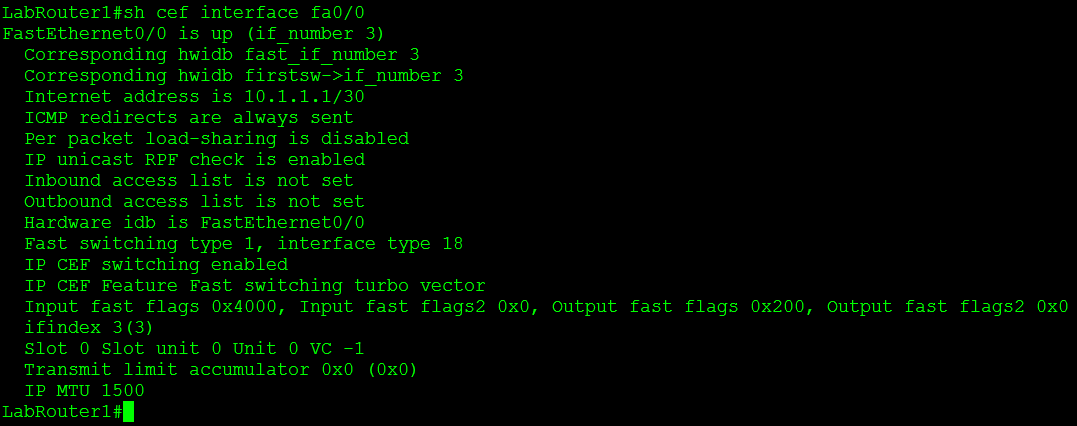
Let’s also not forget the simplest command of them all: show run interface %interfacenum/num%
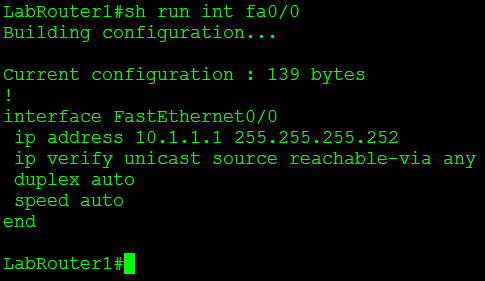
One feature that makes uRPF even more powerful is the fact we can tag on an ACL specifying traffic we want checked or don’t want to be checked. For example I configured uRPF on one my lab routers that had an old DMVPN & BGP configuration running on it, shortly after I configured uRPF I noticed the BGP adjacencies to the spokes go down. After that I configured an ACL so my DMVPN Tunnel traffic was not caught by the uRPF check.

You guys should know by now how much I love named ACL’s but you’ll notice I used an extended numbered ACL, the reason for that on the is simply due to the fact I couldn’t use a named ACL with uRPF.

No option to use a named ACL only numbered ACLs. There are two other options there allow-default which allows the default router to be used when verifying source addresses, and allow-self-ping which allows the router to ping itself, although allowing self-ping opens the router up to a DoS vulnerability.
You can also read more about uRPF in RFC 3704.

 CCIE or Null!