Routing on a Cisco 2960 Catalyst Switch!
Yep, you read that correctly. You can now route on the low-end layer 2 Catalyst 2960 switches (Sounds like one bad oxymoron right?). This feature was introduced in IOS 12.2(55) and requires LAN Base which has been around since late last year, however it is not a very known feature which shocks me! I figured the addition of routing (Albeit limited routing functionality) on a 2960 switch would have been some great news!
Now don’t go expecting to run OSPF or EIGRP on a 2960, in fact it does not support any routing protocol, so your natural reaction is going to be then what is the point? Well it supports inter-vlan routing and up 16 static routes. Remember one of those static routes can be a default route up to a distribution switches’ HSRP address (or VSS Core) allowing you to implement a routed access layer for cheap!
Now in regards to the configuration, once you have 12.2(55) or newer loaded on your 2960 you will need to make sure the switch is running the proper SDM (No, not Security Device Manager for those that are unfortunate to remember it) Switching Database Manager. If you are not familiar with the SDM templates on Catalyst switches they are definitely worth a look at it, especially since the SDM template instructs the switch how to curve up resources to the TCAM. (IE: Mac tables, routing tables, unicast/multicast, QoS, etc -Obviously not all of those pertain to the 2960). The Catalyst 2960 now has the option for ‘lanbase-routing’, which is the SDM we need to enable.

Show sdm prefer – to see the active SDM template in use.

Changing the SDM Template to ‘lanbase-routing’
Note: When we change the SDM the switch requires a reboot for the new SDM template to take effect because it changes the resources allocated by the TCAM.
If you change the SDM and do not perform a reload your changes will not take effect and if you issue sh sdm prefer again the switch will tell you which SDM the switch will load upon next reload.
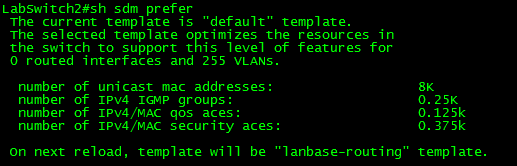
Ok, now that we have the proper SDM loaded on the switch (lanbase-routing) we need to enable ‘ip routing’ on the switch:
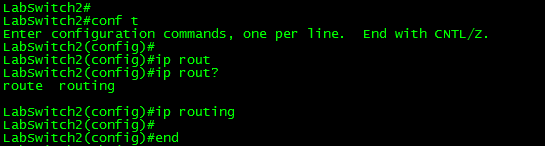
Now, that ‘ip routing’ is enabled we can go ahead and view the routing table of the Catalyst 2960!

Check it out!! A routing table on a Catalyst 2960!
Now, there you have it routing on a Catalyst 2960 the important thing is to remember the limit of 16 static routes. So I put this to the test and added over 20+ static routes:

I placed 22 routes into configuration mode and after #16 the switch silently discarded the rest of the routes. Something else I found pretty interesting is the fact my other VLAN interface disappeared from the routing table (172.16.1.0 /24 which is in the previous screen capture, which is a connected route!) So this feature really is limited but it is there none the less.
In this post I was running 12.2(58) on one of the 2960 switches in my lab C2960TT-L I believe, I was able to place a client one vlan and ping across to another two VLAN attached to the 2960 with no other routing device in the path.
NOTE: WordPress is distorting my images so until I figure out why, all the screen shots in this post are meduim/thumbnail size and can be viewed in full size when clicked on.
SolarWinds Certified Professional!

Well, I just realized the SolarWinds certification test was available free of charge so the other day I decided to give it a shot, I figured it would be a nice small break from my CCIE studies. I never thought I would bother getting a certification for a management platform but considering I’ve been working with it for years, I figured why not.
Just to give you a brief overview of my experience with SolarWinds:
- I’ve been working with SolarWinds hands-on for a least 5 years now.
- I’ve done at least 3-4 installations from the ground-up. Not just install and hit next, planning out and designing the system to manage a few thousand nodes.
- Deployed and managed various different SolarWinds modules, along with performing the upgrades – NPM, NCM, IPAM, NTA, APM/SAM, Fail Over Engine. (And if you have had to plan for an upgrade for an outdated SolarWinds environment running more than 3 modules, it’s fun)
- Created countless user accounts, custom dashboards, custom reports, customer pollers, views, limitations, and so forth.
- Basically you name I’ve done it within SolarWinds. (Well not really considering how quickly SolarWinds expands their platform but you know what I mean)
Now to talk about the exam itself: (Note, I am going to give away any details that can’t be found on SolarWinds’ own website)
- Free of charge (for now).
- It’s online, meaning you can take this from the comfort of your couch.
- Around 80 or so questions. So it’s not that short.
- Covers a wide array of topics from:
- How to perform NPM tasks
- What tools to utilize when troubleshooting
- Some basic troubleshooting steps
- and more.
Now, for my thoughts on the exam. All around the exam was not that bad, for as long as I have been a network engineer and as long as I have worked with SolarWinds there were a few questions that had me stumped, which honestly surprised me I didn’t think I was going to miss 10-12 questions so it just goes to show you, even though the test is about a management platform or the fact it is free it is not what I would call a push-over. Now don’t get me wrong there were some question and some answer choices that were just gimmes, but usually you can find a few of those on every test. Now since the test is online and you do not have to go into a testing center it is considered ‘open book’ meaning you can have the test open in one window and the admin guide open in another window, which may hurt the value of the exam. As far as myself I didn’t even bother putting forth the effort to read the admin guide (again), I figure if I couldn’t pass the exam with my SolarWinds experience either there is something wrong me or the exam.
Now I’d venture to say this exam is a good measure for those that have been doing network administration for at least 3 three years, with SolarWinds exposure, now whether or not this exam/credential gains popularity is another story. Just remember this is centered around managing/monitoring a network, not how to troubleshoot and diagnose SolarWinds application/DB/Web issues. I will say the whole niche of network management (all aspects) is usually the most overlooked functionality of many networking departments. I would not mind seeing that change, just as I would not mind seeing this SolarWinds test gain in popularity and become a test that requires you to sit in a testing to take. It will be interesting to see where SolarWinds takes their certification surely they have potential to expand it to their other modules and even a ‘design’ designation due to how the architecture can change when you start involving EoC and splitting up modules/roles but time will tell.
What if I told you… You don’t have to reload in 5!

For years I’ve been a fan of the reload in command it has always been a useful safety net when making changing that could essentially remove my ability to manage the router. Only recently have I found a feature that will actually roll back the configuration changes I make during a session without the need to reload the router! I don’t know about you but this is just an awesome feature due to the fact it is much less intrusive than the old way of reloading a routing and waiting for it to boot back up. Let’s quickly review this feature:
First we will need to configure a configuration archive, this is actually a prerequisite of the feature want to utilize for reverting our configuration.
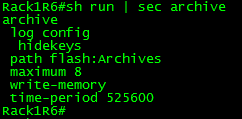
The above configuration simply does the following:
- Keeps a copy of the configuration backup on the local flash card with the directory ‘Archives’
- Keeps the last 8 copies of the configuration
- Takes a copy of the configuration when it is saved (Either using the wr mem command or copy run start)
- The configuration will also be saved automatically every 525600 minutes. (This is entirely optional I just included it)
And I used the following commands:

Now, that the configuration is enabled we can start using this configuration revert feature.
To use this feature all you have to do is use the following command when entering configuration mode config t revert timer x once you enter this command it take a backup of the current configuration of the router and places you in configuration mode:

If you try to utilize this feature without first configuring your config archive:

Now you can make any changes that you need. If you do not confirm your changes when you are finished the configuration will be rolled back to the snapshot taken.

You will want to enter the command config confirm to keep the router from rolling the configuration back assuming the change was implemented successfully:

I would like to add, it is possible to enter config with the revert feature, make your changes save the configuration to the start-config and then not confirm your changes. This will cause the running-config to revert back to its previous state but the startup-config will contain any changes made. So you have to be careful with this feature.
Now, I’ve been trying to beat this feature up in my lab all day, and so far it has not been perfect and I’ve seen some errors rolling back for some Frame-Relay configurations. I’ve went as far as to upload a router config from one of INE’s labs and then enter configuration mode with the revert feature enable and then post an entirely different router’s configuration over the existing configure just to see how the revert feature works. So far with the exceptions of some frame relay features it has been solid. It looks like I will start incorporating this new method into my normal day-to-day operations now I depending on the change I might still put in a reload in since you can’t be too careful especially if you are working devices that are in remote datacenters or located physically across an ocean. At least until I start feeling more confident with this feature.
CCIE: R/S Written Passed!
Finally knocked out the CCIE: R/S Written Exam!! The countdown has begun I’ve got 18 months to go pass the lab or I’ll be taking the written again!
If you’ve been following I’ve been studying for the CCIE: R/S for around a year now so the trek continues!
Now back to Cisco Live I go!!
Off to Cisco Live!!!
Looks like it’s time to start my drive to Orlando! I’m all packed and ready to go, got my iPad (with keyboard) so let’s see if I can get some blogging done in the midst of going between sessions and all the new announcements! (CCIE: R/S v5 especially!!)
I’ll probably be doing a fair amount of Twitter so feel free to follow and follow along – @StepehnO86
Why link latency is important for Cisco lightweight access points.
Link latency, it’s a convenient little check box you turn on individually (or globally) on lightweight access points (Operating in FlexConnect/H-REAP or OfficeExtend) to see the latency details to the controller, while this is one of those ‘yea that’s nice to know’ type things it can be a key resource when troubleshooting certain WLAN issues.
First lets start with why knowing the latency is important, well Cisco has published the requirements for CAPWAP latency from the LAP to the controller and that requirement is no more than 300 ms of latency. Now while most enterprise’s do not have to worry about those latency requirements too much (due to a typical MPLS, VPLS, or metro backbones) other types of companies that lets’s say rely on a pretty common DMVPN over the Wild West (the Internet) may have to keep in mind these latency requirements. If you do not meet these latency requirements you might be seeing CAPWAP packets drop in transit or your Flexconnect/H-REAP LAPs flapping between ‘Connected’ mode and ‘Standalone’ mode which depending on your setup can cause a host of issues.
Link latency will monitor the following:
- The round trip time of the CAPWAP heartbeat, it does this by comparing the timestamps of when the request is sent to when the reply is received. Now, by default this CAPWAP heartbeat occurs every 30 seconds and this CAPWAP latency is different from normal network latency, as the CAPWAP heartbeat also has a dependency concerning how quickly the controller can process the request and send the reply back out.
Something to keep in mind about the link latency stats, is the fact they do not reset unless the LAP reboots or they are manually cleared so if you decide to turn on link latency come back 6 months later and review the states you are not going to get any useful information.

Configuring and viewing Link Latency
As you can see from the above screen shot link latency will provide you a quick glance of the current latency, minimum latency, and the maximum latency to the controller. (From when link latency was first enabled or last cleared)

 CCIE or Null!