A shift in direction and a new job.
I am well aware I have not posted anything at all recently (Practically an entire month has gone by), trust me I have not forgotten about my blog at all.
I will be starting a new job within the next week, and I have just been preparing myself for it. This new position is a 100% network engineering role for managed services company so I will be saying good bye to days of supporting of Windows, VMWare, BES, Lotus, etc. While I have mixed feeling of leaving server administration I am more than happy to finally focus completely on networking and Cisco. This can only mean more good things will come to this blog.
Let’s look at: 802.11 Beacon Frames.
Probably the most common 802.11 management frame is the beacon frame. This frame is broadcasted from the AP listing the capabilities of the WLAN, but what exactly is listed? Let’s take a quick look.

Beacon frame from a Cisco WLAN
Here we can easily make out some of the capabilities of the WLAN, for example the SSID is probably going to be the first thing you notice TestSSID in this case, this is what provides the name of the WLAN. As you know SSID broadcasting can be disabled (Also called Closed System) at which point the SSID field will be blank.
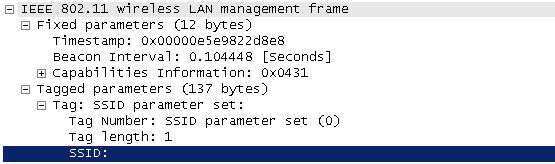
Beacon frame with SSID broadcasting disabled. The SSID Information is simply excluded from the Beacon frame.
Next we will take a look at the what data rates are supported by this WLAN:
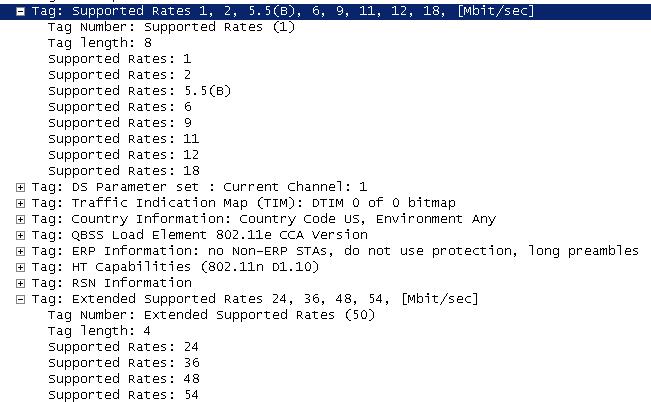
Here you can see the a few supported data rates and the extended supported data rates. This tells us the WLAN is capable of supporting both 802.11b and 802.11g WLAN clients. You’ll notice the Data rate of 5.5 has a (B) next to it, it just so happens 5.5 is set a mandatory data for this WLAN, so if a WLAN client can not support a data rate of 5.5 it will not be able to successfully authenticate and associate to the WLAN.
Next up we are going to at the RSN (Robust Security Network) information for this WLAN.
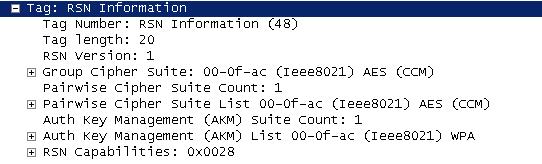
As you can see from the RSN Information element (IE), this WLAN is 802.11i compliant, showing it’s capable of AES/CCMP which means your WLAN clients will need to support 802.11i/WPA2 with AES in order to successfully communicate with this WLAN.
A few other noticeable features we can find in this beacon frame is the WLAN supports High-Throughput (HT), which is 802.11n (Draft 1 in this case). So this is an 802.11b/b/n WLAN in the 2.4 GHz RF range.
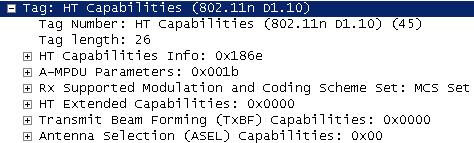
This access point did not have multiple antennas attached to it, which is why the TxBF and ASEL capabilities are currently at 0x0000 and 0x00.
You will also notice in the 6th line down that the WLAN is 802.11e compliant meaning some QoS will be performed, and the line after that states: no non-ERP STA’s, do not use protection this states no 802.11b clients are currently connected only 802.11g WLAN clients are currently connected to this WLAN so protection mechanism’s are not in use.

Now, at the end of the beacon frame you will notice all this Unknown information, as you have probably guessed (or read) this information is vendor specific, which is common for every vendor to have put their own proprietary information within the Beacon frames. The main thing is make sure this extra information does not create its own incompatible issues with older WLAN client devices.
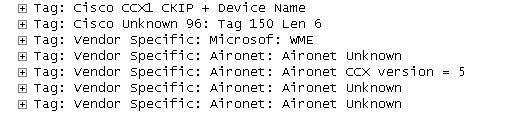
So in conclusion there’s a basic Cisco WLAN beacon frame, it should be a mirror image of the configuration for your WLAN. Looking at the beacon is just a simple way to make sure the WLAN is doing what’s it’s configured to do.
Working with Cisco Macros.
As I was going some switch configuration guides I stumbled upon something that caught my attention macros. These macros allow you to create a set of commands that are issued to the device anytime you apply the macro.
Now these macros are very open ended, and have a host of potential uses. For example if you needed to change the management address of switch in a remote location simply create a macro that will do it for you. This way even though you will lose connectivity to the switch the macro still runs because the commands are being issued by the switch not by you from your computer, thus the new IP address is applied allowing you to connect back in using the new IP address. You can also use these to configure ports. Simply create a macro that will enable various features like portfast, port-security, rootguard, storm control, etc then head into interface config or interface range config mode and apply the macro, its an even quicker way to apply the same configuration to multiple ports this can also assist you with enforcing a uniform configuration to these ports leaving out human error (in case you configure ports manually one by one or continually configure small groups of ports using the interface range command).
You can also set variables in your macros, variables are assigned using the $ followed by the variable name. So let’s just say you created a macro that will reset a port that has been disable due to a port security violation you can set the interface as variable within the macro, now when you apply the macro simply specify the value of the variable.
See the below macro:
macro name psecrst
do clear port-security stick int $int
int $int
shut
no shut
end
sh int | include err-dis
 @
Note: Macros are created from configuration mode.
The key points with defining the above macro are the following, the name of the macro in this case the name is psecrst (short for port security reset, but you can name macro’s whatever you want), then you input the commands in the format and order needed to accomplish what you want successfully. Something to keep in mind is the commands will be issued from configuration mode (config) so if some commands needs to be issued in different modes you will need to account for that. You can also see I specified the variable at $int so I am able to specify whatever interface I need to in order for this macro to work correctly. When you are finished putting the commands in your macro you finish the macro by inputting the @ symbol.
To apply a macro we can issue the following command:
macro global apply psecrst $int fa0/2
As you can see after I specify the macro name I then start calling the variables (and you can have more then one variable in a macro) followed by the desired value of the variable. So in this case I specified fa0/2 as the variable so when the macro runs it resets port fa0/2.
Now if you run a macro and you are not getting the results you were expecting you apply the macro using this command
macro global trace psecrst $int fa0/2
Here we specified the keyword trace instead of apply this tells the switch to show you the commands as they are being issued.
I’ve attached the below screen captures:

Creating a macro within the CLI of a catalyst switch

Starting a macro with a variable assigned.

Tracing a macro with a variable assigned.
Study Notes page is up!
I’ve added a new page to the blog, Study Notes. In this section I will be posting the notes I take while studying for different topics. Now my notes are usually pretty rough and right to the point I take the notes in evernote so I can read them anywhere. Currently I have my CWNA Security Objective notes there, next up will by notes for the Site Surveying Objective. I’m hoping to tackle one CWNA objective a week.
Using the CLI to install and IOS in .tar format.
Recently I tried updating the IOS of a Catalyst 2960 using it’s web interface (Why I don’t know), but like everything Cisco GUI related (SDM) I had trouble getting it to actually work. The page would just sit their and cycle. So I found myself unable to update the IOS using the GUI. So I extracted the files within the .tar file to flash, told to the switch to boot using the newer IOS then issued the reload command.
Start off by putting the .tar file on your tftp server like any normal IOS upgrade, the key difference here is you want to use the following command:
archive tar /xtract tftp://192.168.1.5/c2960-lanbasek9-tar.122-58.SE1.tar flash:
The variables here are the IP Address of the TFTP server and the IOS image file name.
Next you will see the switch extract the files within the .tar file

Extract tar file in flash
The last thing you can see is the .bin IOS file. Now I issue the boot system command:
boot system flash:/c2960-lanbasek9-mz.122-58.SE1/c2960-lanbasek9-mz.122-58.SE1.bin
Note: The contents on the .tar file are extracted into a folder
This tells the switch to boot this particular IOS file. Then after you issue the reload command and the switch boots up you will see the switch loads with the new IOS version.

IOS Version loaded by switch
Control roaming behavior on your Cisco wireless network.
Roaming is just another expectation from your end users. They expect to walk freely around the office to conference rooms or far off cubicles and have their laptop or handheld remain connected while downloading files or in the middle of a conversation. If the roaming process is not quick enough then you could see conversations and clients gets dropped forcing them reconnect to the WLAN, and I can guarantee you your end users will be calling.
Now, if you have done a proper site survey and have solid data to work off of, you can control the roaming behavior of your WLAN clients. The reason you need to know the details of your wireless environment is because you are going to set RSSI limits concerning when your clients should begin looking for a new AP to associate to and, how quickly they are roam between access points. Just keep in mind, making these settings will effect the entire WLAN not just individual sections.
I would also like to mention your clients should be CCXv4 or higher to take advantage of these features. To see if your clients are CCXv4 compliant go to Monitor -> Clients -> click on the client in question.

On your Cisco Wireless LAN Controller, you want to navigate to Wireless -> 802.11a/n or 802.11b/g/n (depending on which frequency you want to customize) -> Client Roaming.

The first thing you need to do when you want to customize these settings is change the mode to custom this will allow you to edit the default values for the rest of the parameters.
The next option is minimum rssi. If a clients RSSI value is below this threshold it will not associate/authenticate to the access point, instead it will continue to look for a better signal from different access points. Valid values for this field are -80 through -90. The understanding is that the signal strength/quality will be so low reliable communication will not be established.
Next we have a setting called hysteresis this value is in dB and states how much stronger the signal of another access point has to be before a client decides to roam to it. This is useful if you have multiple access points in close proximity of each other or clients are moving between the edge of coverage of different access point. The higher this value the closer a client needs to be to an access point for it to associate to the second access point. Valid ranges are from 2 through 4 dB.
Now we have the scan threshold this is another RSSI value range. When the wireless client’s RSSI drops below this threshold the client will begin actively scanning for another access point it can receive a stronger signal from. Valid values range between -70 through -77.
The last field on the page is the transition time this is the amount of a client is going to see a better signal from neighboring access, before it attempts to associate to the second access point. The client determines a better signal when its RSSI drops below the scan threshold and it sees a signal from a neighboring access point higher than the scan threshold.
So all these factors do work together and can be customized for your environment. Normal data traffic is more forgiving since it’s not as delay sensitive, but If you have voice on your WLAN you will want to fine tune these settings to avoid dropped calls.

 CCIE or Null!